Full-page website screenshot

Capture a whole web page, from the header to the footer, as one tall image. Paste a link, pick a device, and download a clean PNG, JPEG or WebP with cookie banners, ads and chat widgets taken out. Free, with no account.

Public pages only. Free without an account: up to 20 captures a day.

Device
Format
Clean up
screenshotforweb.com
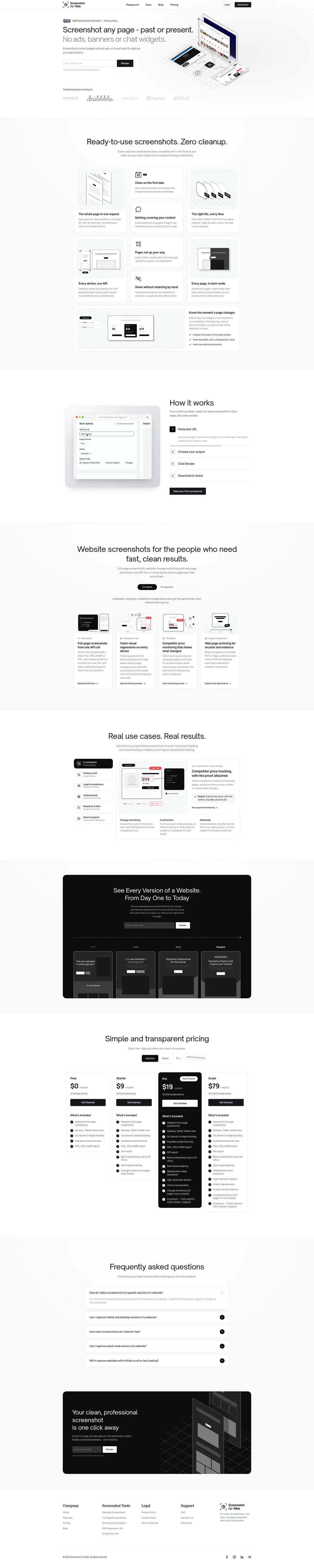
A full-page screenshot of the Screenshot for Web home page, from the header down to the footerExample: our own home page, captured with this tool at desktop size.

Example: our own home page, captured with this tool at desktop size.

What happens when you press Capture

A full-page screenshot is not a photo of your screen. The page is opened in Chrome on our servers and drawn at its full height in one pass.

  1. 1

    The page opens at your size

    Desktop is 1920 × 1080, laptop 1440 × 900. Tablet and phone use an iPad Pro and an iPhone 14 Pro, with their screen size, pixel density and browser identity.
  2. 2

    The clutter goes

    Cookie consent banners, pop-ups, ads and chat bubbles are removed before anything is captured. Each one can be switched off.
  3. 3

    It scrolls to the bottom

    The browser scrolls down the page step by step, pausing at each screen, so images and sections that only load on scroll have loaded. Then it returns to the top.
  4. 4

    One image of everything

    The whole height is captured in a single image, not stitched together from screen-sized pieces, so a sticky header usually appears once, at the top.

How to screenshot a whole page in your own browser

Every major browser can capture a full page without an extension, though the option is often hidden. These steps come from each maker's own documentation. Windows' Snipping Tool and the Mac screenshot keys can't scroll, so they only capture what fits on the screen.

Chrome

Windows, macOS, Linux and ChromeOS

  1. Open DevTools with F12, or Ctrl+Shift+I (⌘+⌥+I on a Mac).
  2. Open the Command Menu with Ctrl+Shift+P (⌘+⇧+P on a Mac).
  3. Type screenshot and choose Capture full size screenshot. Chrome saves a PNG.

Images that load as you scroll may come out blank. Scroll to the bottom and back up before capturing.

Source: Chrome DevTools tips

Firefox

Windows, macOS and Linux

  1. Right-click an empty part of the page and choose Take Screenshot, or press Ctrl+Shift+S (⌘+⇧+S on a Mac).
  2. Choose Save full page in the top right corner.
  3. Download the image, or copy it to the clipboard.

Source: Mozilla Support

Microsoft Edge

Windows and macOS

  1. Press Ctrl+Shift+S, or open the … menu and choose Web capture.
  2. Choose Capture full page, the middle option.
  3. Review the capture, then save it to your device or copy it.

Edge is built on the same engine as Chrome, so the DevTools steps above work in Edge too.

Source: Microsoft Edge: screenshot a webpage

Safari

macOS

  1. In Safari Settings, open Advanced and turn on Show features for web developers.
  2. Choose Develop › Show Web Inspector, or press ⌘+⌥+I.
  3. In Elements, right-click the top <html> line and choose Capture Screenshot.

The macOS screenshot keys (⇧⌘3, ⇧⌘4, ⇧⌘5) only capture what is on screen.

Source: Apple Support: screenshots on Mac

iPhone and iPad

Safari on iOS and iPadOS

  1. Take a screenshot: press the side button and volume up together (side and Home buttons on older models).
  2. Tap the thumbnail that appears in the lower left.
  3. Tap Full Page to capture the whole web page, then save it.

Source: iPhone User Guide

Android

Android 12 and later

  1. Press the power and volume down buttons together.
  2. Tap Capture more at the bottom of the screen.
  3. Drag the crop guides to the end of what you want, then save.

Some apps don't offer Capture more. Some phone makers give it another name.

Source: Android Help

Why full-page screenshots come out wrong

The same few problems spoil most full-page captures, whichever tool takes them.

Blank gaps where images should be

Most sites load images only when they scroll into view. A capture taken without scrolling records empty boxes. This tool scrolls the whole page first. For pages that load very late, use the scrolling screenshot, which scrolls more slowly.

A cookie banner over the content

Consent banners sit on top of the page, so they land in the picture, and fixed ones may land at the bottom of a tall image too. Keep Remove cookie banners and pop-ups on: the capture browser dismisses the banner, with its own button where it can, and hides whatever is left. That happens in our browser, so nothing changes in yours.

A header repeated down the page

Tools that stitch several screen-sized shots together repeat sticky headers and side bars in every piece. A capture drawn at full height in one pass, like this one or the browser options above, avoids that.

A page that never ends

Social feeds and some shops keep adding content as you scroll, so there is no bottom to reach. The free tool stops at 15,000 pixels on desktop and laptop, 7,000 on tablet and 8,000 on a phone (about 5,400 as WebP, whose images can't be taller), and tells you when it did. For a feed, the first screen is often the more useful picture.

Pages behind a login

The capture runs in our browser, not yours, so it sees what a logged-out visitor sees. For your own dashboards and accounts, use your browser's full-page option above.
Which way should you take it?

Ways to take a full-page screenshot, compared
Browser (DevTools, Firefox)Phone (Full Page, Capture more)This free toolScreenshot API
Captures below the foldYesYesYesYes
Removes cookie banners, ads and chatNoNoYesYes
Scrolls so lazy images loadNoNot alwaysYesYes
Choose the device sizeDevTools onlyNoYesYes
Sees pages you're logged intoYesYesNoNo
Many pages, automaticallyNoNoNoYes
FormatsPNGPDF or imagePNG, JPEG, WebPPNG, JPEG, WebP, PDF

Questions about full-page screenshots

Is the full-page screenshot tool free?

Yes. Anyone can use it without an account, up to 20 captures a day. For more, or to capture pages from your own code, the API has a free plan with 20 screenshots a month, and paid plans from 2,000.

Do you keep my screenshots?

No. The image goes straight back to your browser and is not stored. Our server logs record the page's address and your IP address and browser (and the options you chose, if a capture fails), to stop the free tool being abused, but not the image.

How long a page can it capture?

Up to 15,000 pixels tall on desktop and laptop, 7,000 on tablet and 8,000 on a phone, measured in the page's own pixels. That covers nearly every article and landing page. A phone capture in WebP stops at about 5,400, because a WebP image can't be taller than 16,383 real pixels. Longer pages are cut off and the tool says so. The API has no limit of its own.

Why are some images missing from my screenshot?

They hadn't loaded yet. Some sites wait a long time, or until an image is well into view, before loading it. Try the scrolling screenshot, which takes its time over each part of the page.

Can I take a full-page screenshot of the mobile version?

Yes. Choose Phone and the page is opened as an iPhone 14 Pro would see it, 393 pixels wide at three times the density, so the image is 1,179 pixels wide and the mobile layout is used.

Which format should I pick?

PNG keeps text and interface edges perfectly sharp and is the safe choice for design reviews and documentation. JPEG and WebP make much smaller files, which matters for long pages. WebP is usually the smallest at the same quality, and every current browser opens it.

Can I capture a page that needs a login?

Not with this tool. It opens pages as a logged-out visitor. Your own browser can do it: see the steps for Chrome, Firefox, Edge and Safari above.

Can I automate full-page screenshots?

Yes. Send fullPage: true to the API and you get the same capture from any language. See the full-page guide in the docs.

Full-page screenshots from your own code

The API does what this page does, for as many pages as you need: full length with no height limit, the same blocking, plus PDF, dark mode and scheduled captures on paid plans. The free plan includes 20 screenshots a month.

Request
curl -X POST https://screenshotforweb.com/api/v1/screenshot \
  -H "X-API-Key: YOUR_API_KEY" \
  -H "Content-Type: application/json" \
  -d '{
    "url": "https://example.com",
    "fullPage": true,
    "format": "png",
    "blockCookieBanners": true,
    "blockAds": true,
    "blockChatWidgets": true
  }'

More free screenshot tools