Website screenshot tool

Take a clean screenshot of any website at desktop, laptop, tablet or phone size. Paste a URL and get the first screen, or the whole page, as a PNG, JPEG or WebP, with cookie banners, ads and chat widgets taken out. Free, with no sign-up.

Public pages only. Free without an account: up to 20 captures a day.

Capture
Device
Format
Clean up
screenshotforweb.com
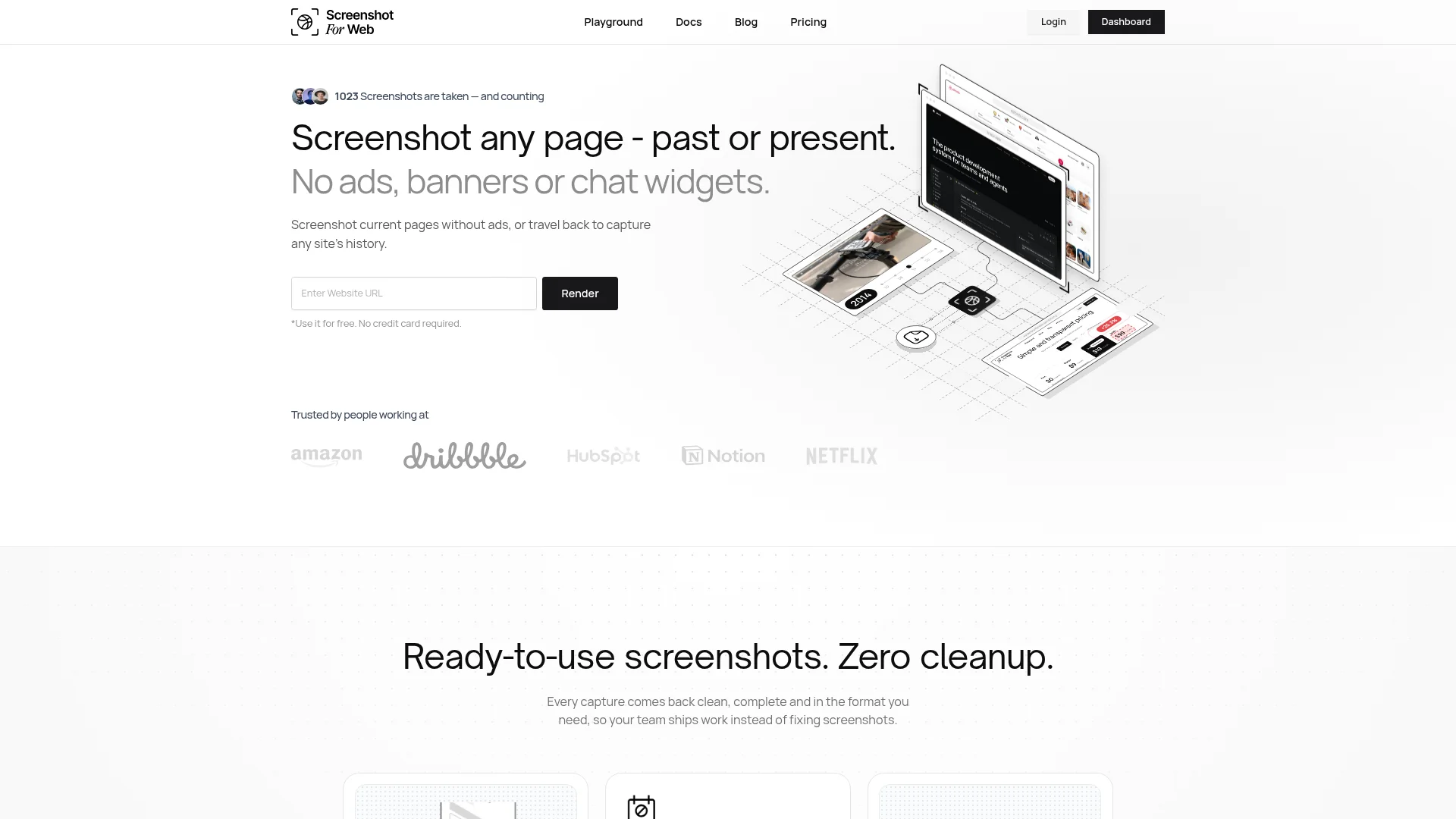
The first screen of the Screenshot for Web home page at desktop sizeExample: the first screen of our home page at desktop size.

Example: the first screen of our home page at desktop size.

The sizes it captures

The first screen is what a visitor sees before scrolling, often called the part above the fold. Each device opens the page with that device's screen size, pixel density and browser identity, so you get the layout its visitors actually get, not a shrunken desktop page.

Device sizes and the images they produce
Screen sizePixel densityImage size
Desktop1920 × 10801×1920 × 1080 px
Laptop1440 × 9001×1440 × 900 px
Tablet (iPad Pro 12.9″)1024 × 13662×2048 × 2732 px
Phone (iPhone 14 Pro)393 × 8523×1179 × 2556 px

Choose Whole page to keep going below the first screen. The image then grows as tall as the page, up to the limits in the full-page tool.

PNG, JPEG or WebP?

The format decides the file size far more than the page does. Here is our own home page captured with this tool, at desktop size, in each format.

File sizes of the same page in each format
PNGJPEGWebP
First screen, 1920 × 1080426 KB147 KB83 KB
Whole page, 1920 × 9,5781.62 MB1.11 MB570 KB

Captured on 15 October 2026. JPEG and WebP at quality 85, the tool's setting.

PNG

Lossless: every pixel exactly as rendered, so small text and thin lines stay crisp. The right choice for design reviews, bug reports and documentation, and the largest file.

JPEG

Opens anywhere, including old email clients and office software. It is made for photos, so sharp text edges can show faint smudges. A third of the PNG's size here.

WebP

The smallest by far, a fifth of the PNG here, with text that stays clean at this quality. Every current browser shows it, which makes it the best choice for pictures on web pages.

Taking a screenshot on your own device

For a quick picture of what is on your screen right now, the built-in keys are the fastest way. These are the steps from each maker's own help pages.

Windows

Windows 10 and 11

  1. Press ⊞ Win+Shift+S to open the Snipping Tool overlay.
  2. Choose a rectangle, a window, the full screen or a freeform shape.
  3. Windows saves it to your Screenshots folder and opens it in Snipping Tool to mark up or copy.

PrtSc copies the whole screen to the clipboard in one press.

Source: Microsoft Support: Snipping Tool

Mac

macOS

  1. ⇧+⌘+3 captures the whole screen.
  2. ⇧+⌘+4 lets you drag out an area. Press Space next to capture one window instead.
  3. ⇧+⌘+5 opens the Screenshot app, with screen recording and a timer.

Screenshots are saved to the desktop unless you choose another place in the Screenshot app.

Source: Apple Support: screenshots on Mac

iPhone and iPad

iOS and iPadOS

  1. Press the side button and volume up together, or the side and Home buttons on models with a Home button.
  2. Tap the thumbnail to crop or mark it up. In Safari you can also tap Full Page.

Source: iPhone User Guide

Android

Most Android phones

  1. Press the power and volume down buttons together.
  2. If that doesn't work, hold the power button for a few seconds and tap Screenshot.
  3. Find it in Photos, under your screenshots.

Source: Android Help

When an online tool does a better job

  • A size you don't have. See the phone layout from a desktop, or a 1920-pixel desktop from a small laptop, without resizing windows or borrowing a phone.
  • Nothing of yours in the picture. No browser bar, tabs, bookmarks or extension icons, and no account details, because the page is opened in our browser as a logged-out visitor.
  • No banners in the way. Cookie notices, pop-ups, ads and chat bubbles are cleared before the capture, which takes several clicks by hand and can't always be done.
  • The same result every time. The same size and settings each run, so before-and-after shots of a redesign line up.

Questions about website screenshots

Is the website screenshot tool free?

Yes, with no account and no watermark, up to 20 captures a day. To capture from your own code, the API's free plan includes 20 screenshots a month.

Do you store the screenshots?

No. The image is sent straight to your browser and not kept. Our server logs record the page's address and your IP address and browser (and the options you chose, if a capture fails), to stop the free tool being abused.

Why does my screenshot look different from the site on my screen?

Sites can change what they show by visitor: your location and language, whether you are logged in, what you accepted in a cookie banner, and which test version you were given. Our browser is a new, logged-out visitor connecting from a data center, so it can see a slightly different page.

Can I get a high-resolution or retina screenshot?

Tablet and phone captures are already at 2× and 3× density. Desktop and laptop are at 1×. The API can capture at a higher density, and at sizes up to 3840 × 2160, on the Pro plan.

Can I screenshot a website in dark mode?

Not with the free tool. The API's dark mode option, on paid plans, renders a page dark even when the site only ships a light theme.

Can I capture how a website looked in the past?

Yes, through the API: website time-travel finds the Wayback Machine's copy of a site for each past year or month and screenshots it.

Can I take screenshots of many websites at once?

The free tool takes one page at a time. With an account, the batch endpoint captures up to 100 URLs in one job and returns them together.

Website screenshots from your own code

One API call returns the same clean capture for any URL, at any of these sizes or your own. Use it for link previews, reports, directories and anything else that needs pictures of web pages. The free plan includes 20 screenshots a month.

Request
curl -X POST https://screenshotforweb.com/api/v1/screenshot \
  -H "X-API-Key: YOUR_API_KEY" \
  -H "Content-Type: application/json" \
  -d '{
    "url": "https://example.com",
    "device": "iPhone 14 Pro",
    "format": "webp",
    "blockCookieBanners": true,
    "blockAds": true
  }'

More free screenshot tools